
Feature · Payment reminders
Automate payment reminders and stay in control.
Choose when reminders go out and what each message says. Invoice Tray follows the schedule for eligible unpaid invoices and stops the reminders once payment is recorded.
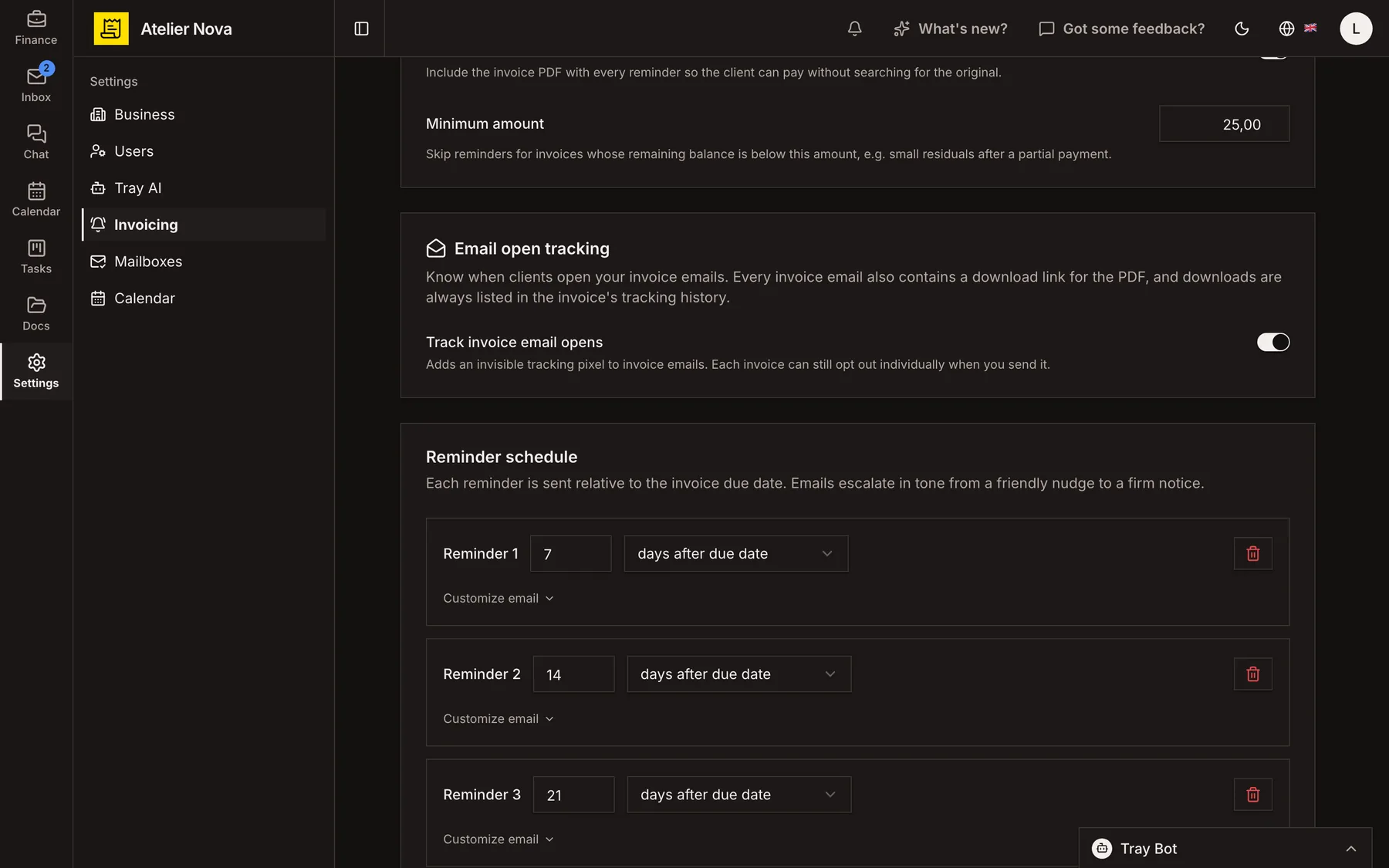
- Schedule reminders before, on or after the due date.
- Set a minimum unpaid balance to avoid unnecessary reminders.
- Pause reminders for individual invoices.
- Track email opens and PDF downloads when tracking is enabled.
- 15 NovInvoice sent, 30-day payment terms
- 12 DecReminder three days before the due date
- 15 DecPayment due
- 22 DecReminder seven days overdue
- Payment recordedReminders stop
- Next reminderNot sent
How it works
Set reminders around the due date
Choose the number of days before or after payment is due, or send a reminder on the due date itself. Write a message for each stage, from a polite first reminder to a firmer notice.
Write to customers in their invoice language
Reminders use the language of the invoice, whether English, French or Dutch. Include the invoice PDF if you want customers to have the document at hand.
Stop reminders when payment is recorded
Record payment manually or against an imported bank transaction to stop the relevant reminders. You can also set a minimum outstanding balance below which no reminder is sent.
Handle exceptions individually
Turn off automatic reminders for a particular invoice when a personal conversation makes more sense. You can still prepare a one-off reminder directly from that invoice.
Review what has been sent
See each reminder's date, recipient and status, along with the next scheduled action. If open tracking is switched on, you can also see when the email was opened.
See it in action
Explore more features
Ready to send your next invoice?
Create your account, add your business details and prepare your first invoice.
No credit card required to get started.